> ## Documentation Index
> Fetch the complete documentation index at: https://danswer-docs-google-drive-connector.mintlify.site/llms.txt
> Use this file to discover all available pages before exploring further.
# Google Drive OAuth
> Set up an OAuth app so Onyx can index a Google account's Drive
With OAuth, one person signs in to Google and Onyx indexes what that account can see: its My Drive,
the shared drives it belongs to, and files shared with it.
It works with a personal Google account and needs no Workspace administrator.
For a whole Google Workspace,
or for [Auto Sync Permissions](/admins/connectors/official/google_drive/overview#auto-sync-permissions),
use a [service account](/admins/connectors/official/google_drive/service_account) instead.
Onyx accepts an OAuth credential for permission sync,
but it can only read the sharing of files the signed-in account can reach, so the result is incomplete.
## Before you begin
You need:
* A Google Cloud project, or permission to create one.
* The public address of your Onyx deployment, such as `https://onyx.example.com`.
Google sends the sign-in back to that address, so it must match exactly.
* The Google account that will authorize Onyx. Everything the connector indexes is what this account can open.
## Configure Google Cloud
In the [Google Cloud console](https://console.cloud.google.com/projectcreate), create a project,
or select an existing one.
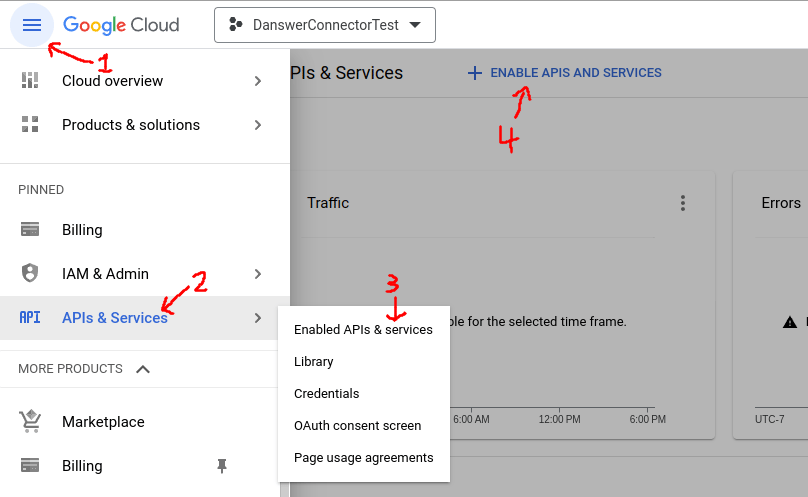
Open **APIs & Services → Library** and enable three APIs:
* **Google Drive API**
* **Admin SDK API**, which permission sync uses to read the Workspace directory
* **Google Docs API**, which Onyx uses to split Google Docs at their headings
Each has a direct link: [Drive](https://console.cloud.google.com/flows/enableapi?apiid=drive.googleapis.com),
[Admin SDK](https://console.cloud.google.com/flows/enableapi?apiid=admin.googleapis.com),
[Docs](https://console.cloud.google.com/flows/enableapi?apiid=docs.googleapis.com).
 Open **Google Auth Platform → Branding**. If the project has no consent screen yet, select **Get started**.
* **App name**: `Onyx`, or any name your users will recognize.
* **User support email**: an address at your organization.
* **Audience**: **Internal** if the project belongs to a Google Workspace and only its users will authorize Onyx.
**External** otherwise, including for a personal Google account.
* **Contact information**: an address at your organization.
Agree to the user data policy and select **Create**.
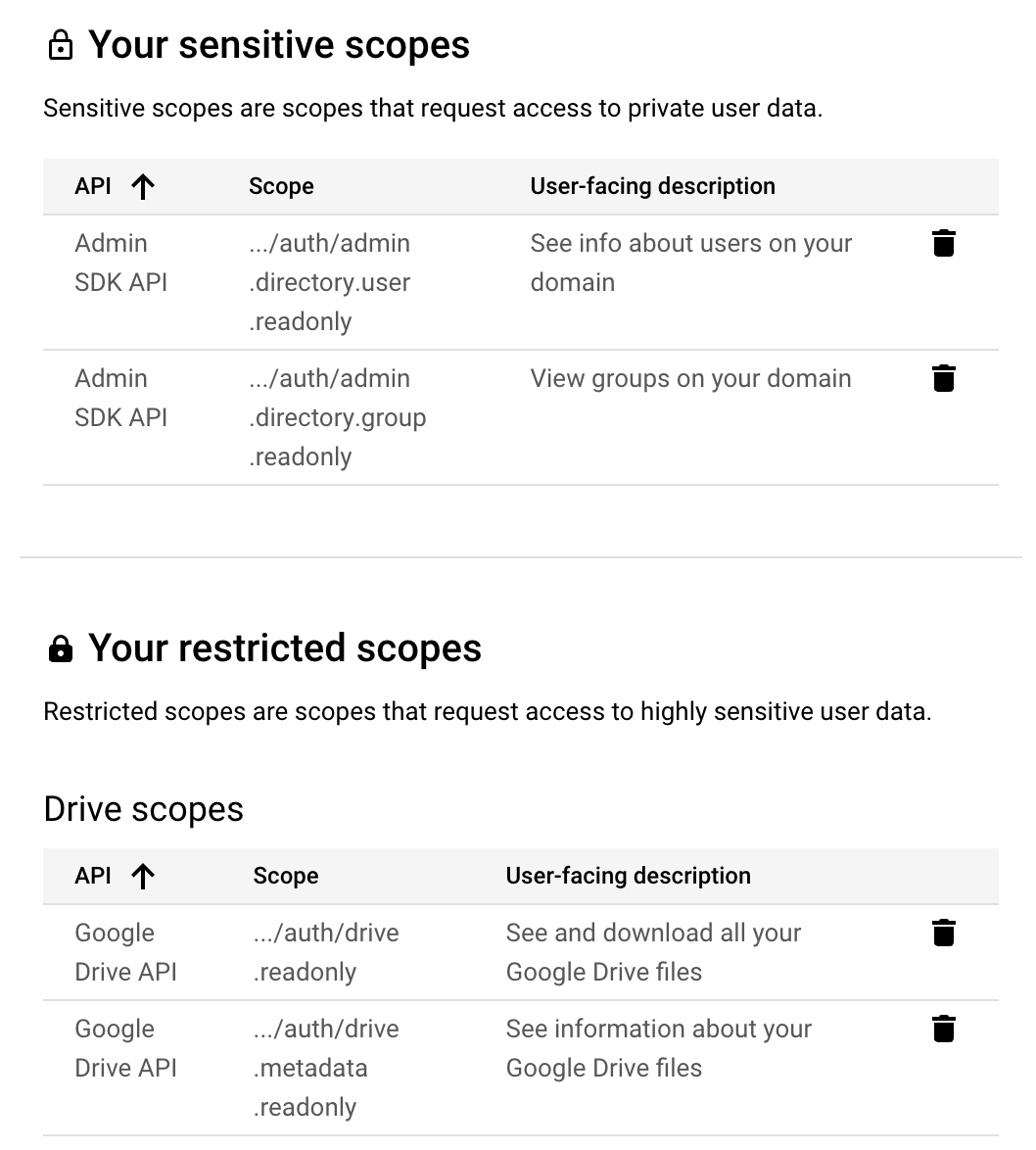
Open **Google Auth Platform → Data Access** and select **Add or remove scopes**. Add these four,
then select **Update** and **Save**:
```text theme={null}
https://www.googleapis.com/auth/drive.readonly
https://www.googleapis.com/auth/drive.metadata.readonly
https://www.googleapis.com/auth/admin.directory.user.readonly
https://www.googleapis.com/auth/admin.directory.group.readonly
```
The two Drive scopes are marked sensitive, and the two Admin SDK scopes are restricted.
With an **Internal** audience Google applies no review. With **External**, see the next step.
Open **Google Auth Platform → Branding**. If the project has no consent screen yet, select **Get started**.
* **App name**: `Onyx`, or any name your users will recognize.
* **User support email**: an address at your organization.
* **Audience**: **Internal** if the project belongs to a Google Workspace and only its users will authorize Onyx.
**External** otherwise, including for a personal Google account.
* **Contact information**: an address at your organization.
Agree to the user data policy and select **Create**.
Open **Google Auth Platform → Data Access** and select **Add or remove scopes**. Add these four,
then select **Update** and **Save**:
```text theme={null}
https://www.googleapis.com/auth/drive.readonly
https://www.googleapis.com/auth/drive.metadata.readonly
https://www.googleapis.com/auth/admin.directory.user.readonly
https://www.googleapis.com/auth/admin.directory.group.readonly
```
The two Drive scopes are marked sensitive, and the two Admin SDK scopes are restricted.
With an **Internal** audience Google applies no review. With **External**, see the next step.
 An **External** app starts in testing, and only listed test users can authorize it.
Open **Google Auth Platform → Audience**,
and under **Test users** select **Add users** and add the Google account that will authorize Onyx.
Testing mode is enough for Onyx. Google expires a test user's authorization after seven days, though,
so the account has to reauthorize the credential weekly. To avoid that, publish the app under **Publishing status**.
With restricted scopes, publishing sends the app to Google for verification,
so an **Internal** audience is the easier path for a Workspace.
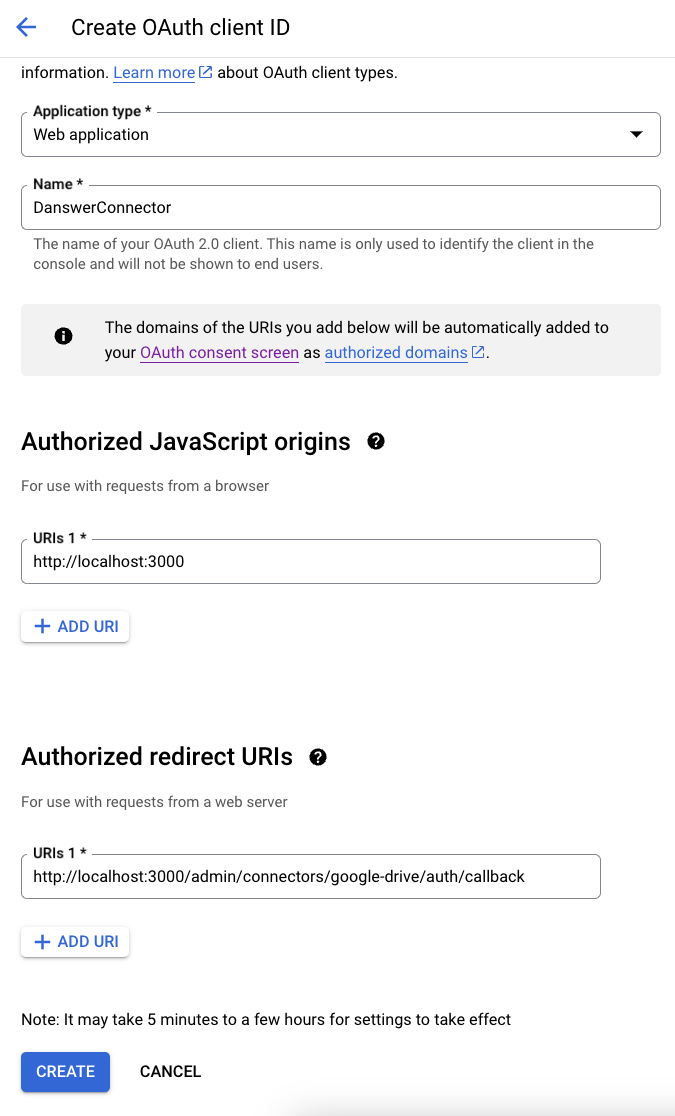
Open **Google Auth Platform → Clients** and select **Create client**.
* **Application type**: **Web application**.
* **Name**: `Onyx`, or anything you like.
* **Authorized redirect URIs**: select **Add URI** and enter your Onyx address followed by
`/admin/connectors/google-drive/auth/callback`:
```text theme={null}
https://onyx.example.com/admin/connectors/google-drive/auth/callback
```
On Onyx Cloud the address is `https://cloud.onyx.app`. For a local deployment it is `http://localhost:3000`.
The scheme, host, and port must match your deployment exactly, or Google rejects the sign-in.
An **External** app starts in testing, and only listed test users can authorize it.
Open **Google Auth Platform → Audience**,
and under **Test users** select **Add users** and add the Google account that will authorize Onyx.
Testing mode is enough for Onyx. Google expires a test user's authorization after seven days, though,
so the account has to reauthorize the credential weekly. To avoid that, publish the app under **Publishing status**.
With restricted scopes, publishing sends the app to Google for verification,
so an **Internal** audience is the easier path for a Workspace.
Open **Google Auth Platform → Clients** and select **Create client**.
* **Application type**: **Web application**.
* **Name**: `Onyx`, or anything you like.
* **Authorized redirect URIs**: select **Add URI** and enter your Onyx address followed by
`/admin/connectors/google-drive/auth/callback`:
```text theme={null}
https://onyx.example.com/admin/connectors/google-drive/auth/callback
```
On Onyx Cloud the address is `https://cloud.onyx.app`. For a local deployment it is `http://localhost:3000`.
The scheme, host, and port must match your deployment exactly, or Google rejects the sign-in.
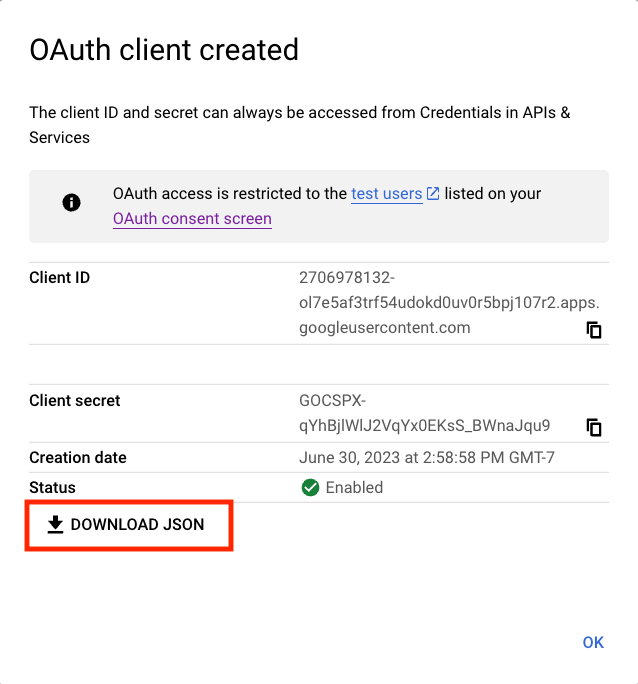
 Select **Create**. In the dialog that follows, select **Download JSON**.
The same download is available later from the client's row under **Clients**.
This file is the OAuth app you upload to Onyx.
Select **Create**. In the dialog that follows, select **Download JSON**.
The same download is available later from the client's row under **Clients**.
This file is the OAuth app you upload to Onyx.
 ## Create the credential in Onyx
In Onyx, go to **Admin Panel → Add Connector** and select **Google Drive**, then select **Create New**.
Under **Option 1: OAuth app**, upload or paste the client JSON you downloaded.
## Create the credential in Onyx
In Onyx, go to **Admin Panel → Add Connector** and select **Google Drive**, then select **Create New**.
Under **Option 1: OAuth app**, upload or paste the client JSON you downloaded.
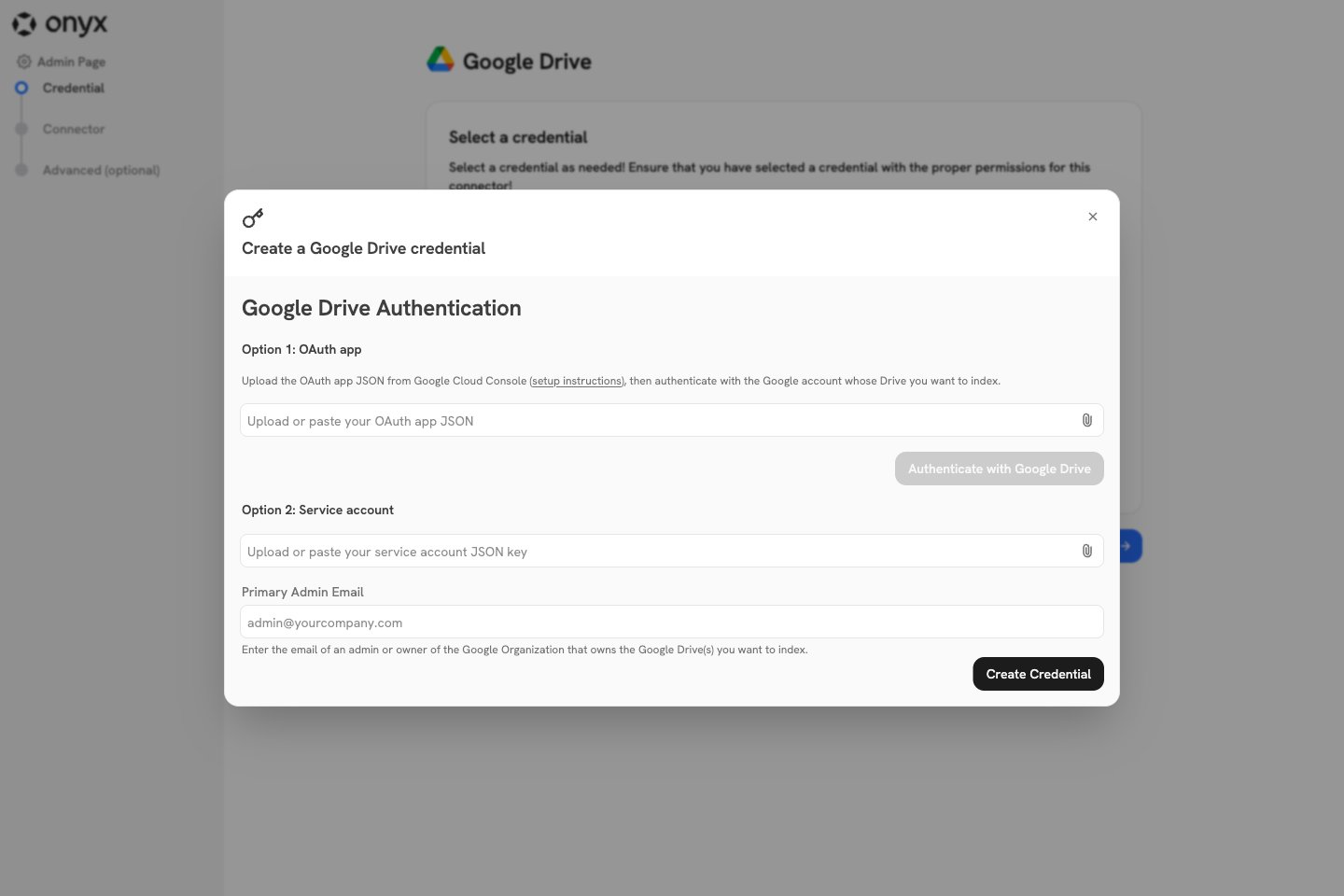 Select **Authenticate with Google Drive** and sign in as the account whose Drive Onyx should index.
Approve every permission Google lists; Onyx needs all four. Google returns you to Onyx,
which shows **Authentication Complete** and creates the credential.
Select the new credential and select **Continue**.
Then follow [Configure the connector in
Onyx](/admins/connectors/official/google_drive/overview#configure-the-connector-in-onyx).
Each OAuth credential carries its own app JSON and its own Google account.
To add another connector for the same account, select the existing credential rather than creating a new one.
To index a different account, create a new credential and sign in as that account; the same app JSON can be reused.
## Permission sync with an OAuth credential
If you use this credential with **Auto Sync Permissions**,
the account that signed in must be a Workspace administrator with these privileges,
set under **Account → Admin roles** in the Google Admin console:
* **Admin console privileges → Services → Drive and Docs → Settings**
* **Admin API privileges → Users → Read**
* **Admin API privileges → Groups → Read**
* **Admin API privileges → Organization Units → Read**
Even then, Onyx can only follow the folders and shared drives this one account can open,
so files shared in ways this account cannot see are not mirrored correctly.
A [service account](/admins/connectors/official/google_drive/service_account) does not have that limit.
This documentation is built and hosted on [Mintlify](https://mintlify.com), a developer documentation platform.
Select **Authenticate with Google Drive** and sign in as the account whose Drive Onyx should index.
Approve every permission Google lists; Onyx needs all four. Google returns you to Onyx,
which shows **Authentication Complete** and creates the credential.
Select the new credential and select **Continue**.
Then follow [Configure the connector in
Onyx](/admins/connectors/official/google_drive/overview#configure-the-connector-in-onyx).
Each OAuth credential carries its own app JSON and its own Google account.
To add another connector for the same account, select the existing credential rather than creating a new one.
To index a different account, create a new credential and sign in as that account; the same app JSON can be reused.
## Permission sync with an OAuth credential
If you use this credential with **Auto Sync Permissions**,
the account that signed in must be a Workspace administrator with these privileges,
set under **Account → Admin roles** in the Google Admin console:
* **Admin console privileges → Services → Drive and Docs → Settings**
* **Admin API privileges → Users → Read**
* **Admin API privileges → Groups → Read**
* **Admin API privileges → Organization Units → Read**
Even then, Onyx can only follow the folders and shared drives this one account can open,
so files shared in ways this account cannot see are not mirrored correctly.
A [service account](/admins/connectors/official/google_drive/service_account) does not have that limit.
This documentation is built and hosted on [Mintlify](https://mintlify.com), a developer documentation platform.