> ## Documentation Index
> Fetch the complete documentation index at: https://danswer-docs-google-drive-connector.mintlify.site/llms.txt
> Use this file to discover all available pages before exploring further.
# LumApps
> Index intranet content from LumApps
The LumApps connector indexes the published content of your LumApps intranet: pages,
news and any custom content types your organization has defined.
The connector signs in as an application and acts as a **service user**.
It indexes only the content that service user can read, so that user's access decides the connector's scope.
## How it works
| Content | Behavior |
| - | - |
| Content | One document per LumApps content item. Onyx indexes its title and body text and keeps a link back to LumApps. |
| Live only | Only content LumApps reports as live is indexed. Archived and unpublished content is skipped. |
| Metadata | Metadata values are resolved to their labels, so a tag reads as its name rather than its internal id. |
| Language | Content and metadata labels are read in one language. See **Language** below. |
| Permissions | Not available. **Auto Sync Permissions** is not offered for LumApps, so the access type can only be **Public** or **Private**. |
Indexing is checkpointed, so a large intranet is covered across several attempts rather than one long run.
The access type applies to everything the service user can read.
If that user has broad intranet access and you choose **Public**, all of it becomes visible to every Onyx user.
Give the service user the access you want Onyx to have.
## Before you begin
You need:
* Your LumApps **cell** API host, for example `https://go-cell-005.api.lumapps.com`
* Your LumApps organization ID, which is numeric
* A LumApps application with an ID and an API key
* A service user for the application to act as, given as an email address or a user ID
* An Onyx administrator account
The API base URL is your organization's cell host, not the LumApps documentation site `api.lumapps.com`.
Using the wrong host fails authentication. Ask LumApps support for your cell host if you do not know it.
## Configure Onyx
In Onyx, go to **Admin Panel → Add Connector** and select **LumApps**.
Enter the application ID in **LumApps Application ID**, the key in **LumApps API Key**,
and the service user in **LumApps Service User**. A value containing `@` is treated as an email address;
anything else is treated as a user ID.
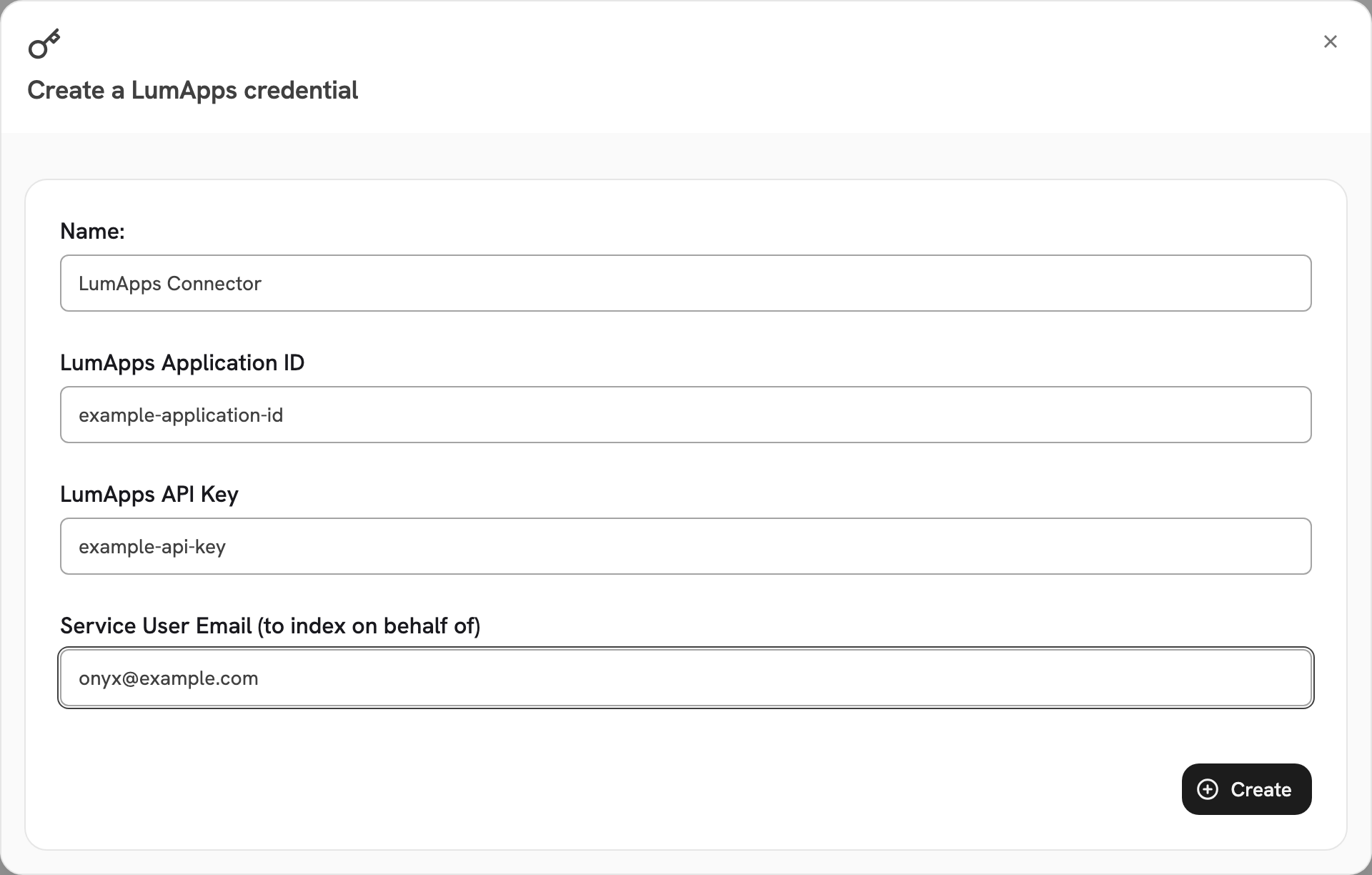 Give the connector a name.
Enter your cell host in **API Base URL (cell host)** and your numeric organization ID in **Organization ID**.
**Public** makes all indexed LumApps content visible to every Onyx user.
**Private** limits the connector to selected Onyx user groups, and is a paid feature:
the Business and Enterprise tiers on Onyx Cloud, and the Enterprise Edition when self-hosted.
Select **Create Connector**. Onyx reads one content item to check the credential before saving.
Then open **Admin Panel → Existing Connectors**, select the connector,
and confirm its first indexing attempt completes.
### Advanced settings
| Setting | Default | Purpose |
| - | - | - |
| Instance (site) IDs | empty | Index only these LumApps instances. Leave empty to index everything the service user can read. |
| Custom Content Type IDs | empty | Index only these custom content types. Leave empty to index every content type. |
| Language | `en` | The language used for content titles, bodies and metadata labels, as an ISO 639-1 code such as `en` or `fr`. |
**Language** selects one language; it does not index several. On a multilingual intranet,
content is indexed in the language you choose here. To index a second language,
add a second connector with a different **Language**.
## Limits
| Limit | Value | Notes |
| - | - | - |
| LumApps API call | 60s | |
| Retries per request | 5 | Backed off up to 60s between attempts, honouring a `Retry-After` header when LumApps sends one. |
| Items per request | 100 | The LumApps maximum. Onyx never asks for more. |
The access token is short-lived and Onyx mints a new one a minute before the old one expires,
so no token rotation is needed on your side. The connector downloads no files, so it has no file-size cap.
## Troubleshooting
`LumApps credentials are invalid or expired` means the application ID or API key is wrong,
or the application has been removed. Confirm both,
and confirm **API Base URL (cell host)** and **Organization ID** belong to the same LumApps organization.
`The LumApps service user lacks permission to read content` means authentication worked but the service user has no
access. Grant it access to the instances you want indexed in LumApps.
Using `api.lumapps.com` instead of your cell host fails. Enter the cell host for your organization,
for example `https://go-cell-005.api.lumapps.com`.
Only live content is indexed, so archived and unpublished items never appear.
Check that the item's instance is listed in **Instance (site) IDs** when that field is not empty,
that its type is listed in **Custom Content Type IDs** when that field is not empty,
and that the service user can open it.
Set **Language** to the ISO 639-1 code you want. One connector indexes one language;
add a second connector for a second language.
This documentation is built and hosted on [Mintlify](https://mintlify.com), a developer documentation platform.
Give the connector a name.
Enter your cell host in **API Base URL (cell host)** and your numeric organization ID in **Organization ID**.
**Public** makes all indexed LumApps content visible to every Onyx user.
**Private** limits the connector to selected Onyx user groups, and is a paid feature:
the Business and Enterprise tiers on Onyx Cloud, and the Enterprise Edition when self-hosted.
Select **Create Connector**. Onyx reads one content item to check the credential before saving.
Then open **Admin Panel → Existing Connectors**, select the connector,
and confirm its first indexing attempt completes.
### Advanced settings
| Setting | Default | Purpose |
| - | - | - |
| Instance (site) IDs | empty | Index only these LumApps instances. Leave empty to index everything the service user can read. |
| Custom Content Type IDs | empty | Index only these custom content types. Leave empty to index every content type. |
| Language | `en` | The language used for content titles, bodies and metadata labels, as an ISO 639-1 code such as `en` or `fr`. |
**Language** selects one language; it does not index several. On a multilingual intranet,
content is indexed in the language you choose here. To index a second language,
add a second connector with a different **Language**.
## Limits
| Limit | Value | Notes |
| - | - | - |
| LumApps API call | 60s | |
| Retries per request | 5 | Backed off up to 60s between attempts, honouring a `Retry-After` header when LumApps sends one. |
| Items per request | 100 | The LumApps maximum. Onyx never asks for more. |
The access token is short-lived and Onyx mints a new one a minute before the old one expires,
so no token rotation is needed on your side. The connector downloads no files, so it has no file-size cap.
## Troubleshooting
`LumApps credentials are invalid or expired` means the application ID or API key is wrong,
or the application has been removed. Confirm both,
and confirm **API Base URL (cell host)** and **Organization ID** belong to the same LumApps organization.
`The LumApps service user lacks permission to read content` means authentication worked but the service user has no
access. Grant it access to the instances you want indexed in LumApps.
Using `api.lumapps.com` instead of your cell host fails. Enter the cell host for your organization,
for example `https://go-cell-005.api.lumapps.com`.
Only live content is indexed, so archived and unpublished items never appear.
Check that the item's instance is listed in **Instance (site) IDs** when that field is not empty,
that its type is listed in **Custom Content Type IDs** when that field is not empty,
and that the service user can open it.
Set **Language** to the ISO 639-1 code you want. One connector indexes one language;
add a second connector for a second language.
This documentation is built and hosted on [Mintlify](https://mintlify.com), a developer documentation platform.