> ## Documentation Index
> Fetch the complete documentation index at: https://danswer-docs-google-drive-connector.mintlify.site/llms.txt
> Use this file to discover all available pages before exploring further.
# Notion
> Connect Notion pages and databases to Onyx with an integration token
## How it works
Onyx reads pages and database content that you share with a Notion connection.
Leave **Root Page ID** blank to index all accessible pages, or set it to index one page and its children.
Onyx checks for content changes on the connector's refresh schedule. The default refresh interval is **30 minutes**.
Indexing time also depends on workspace size, API limits, and the indexing queue.
A refresh interval does not guarantee that changes appear within that time. Without a root page,
Onyx uses Notion's search API and fetches pages edited within each indexing window. With a root page configured,
Onyx traverses that page and its children on each run.
## Before you begin
You need an Onyx administrator account and a Notion internal connection token. If you need a new connection,
ask a Notion workspace owner to create it. You also need permission to share the target pages with that connection.
Workspace members can share pages with an existing connection when their page permissions and workspace policies allow
it. Enterprise workspace owners can restrict who manages connection access.
Notion now calls integrations **connections**. The current flow uses **New connection** and **Access token**.
The token may also be labeled **Installation access token** or **Internal Integration Secret**.
## Get your Notion credentials
### Create an internal connection
Sign in to the [Notion developer portal](https://app.notion.com/developers/connections)
with your workspace owner account. Select **New connection**.
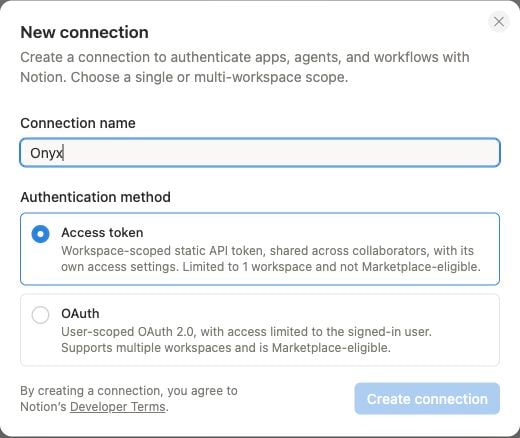
Enter a name such as `Onyx`. Select **Access token** as the authentication method,
then select **Create connection**. Choose the workspace you want Onyx to index during setup.
 Open the connection's capability settings. Enable **Read content** and save your changes.
Onyx does not need **Update content** or **Insert content** to index pages.
Open **Configuration**. Under **Integration token**, copy the **Access token**.
Older screens call this **Internal Integration Secret**. This is the value you will paste into Onyx.
Open the connection's capability settings. Enable **Read content** and save your changes.
Onyx does not need **Update content** or **Insert content** to index pages.
Open **Configuration**. Under **Integration token**, copy the **Access token**.
Older screens call this **Internal Integration Secret**. This is the value you will paste into Onyx.
 Keep the token private. Do not include it in screenshots, source code, or support messages.
### Reuse an existing connection
In Notion, open your workspace menu and select **Settings → Connections → Manage → All connections**.
Find the internal connection. Open its **•••** menu and select **Manage connection**. Under **Copy access token**,
select **Copy**. You can also open **Developer portal** to view its configuration.
Do not select **Refresh** to copy an existing token. Refresh generates a new token and can disrupt existing connectors.
See Notion's [internal connection authorization
guide](https://developers.notion.com/guides/get-started/authorization#internal-connection-auth-flow-set-up)
for the token location and its [connection capability reference](https://developers.notion.com/reference/capabilities)
for permission details.
### Give the connection access to pages
Creating a connection does not give it access to all workspace content. Share the pages and databases you want to index.
You can also manage shared pages in the developer portal under **Content access → Edit access**.
Open the original page or database that you want Onyx to read.
Open the **•••** menu at the top right. Under **Connections**, select **Add connections** or **+ Add connection**.
Search for the connection you created, select it, and confirm access.
Access to a parent page includes its child pages. Repeat this process for other top-level pages you want to index.
For databases, share the source database, not only a page containing a linked view.
Sharing a database also gives the connection access to its row pages and their children.
Onyx indexes accessible content within the configured root-page scope, if one is set.
See Notion's [page connection instructions](https://www.notion.com/help/add-and-manage-connections-with-the-api).
## Add the credentials in Onyx
Open **Admin Panel → Add Connector** and select **Notion**.
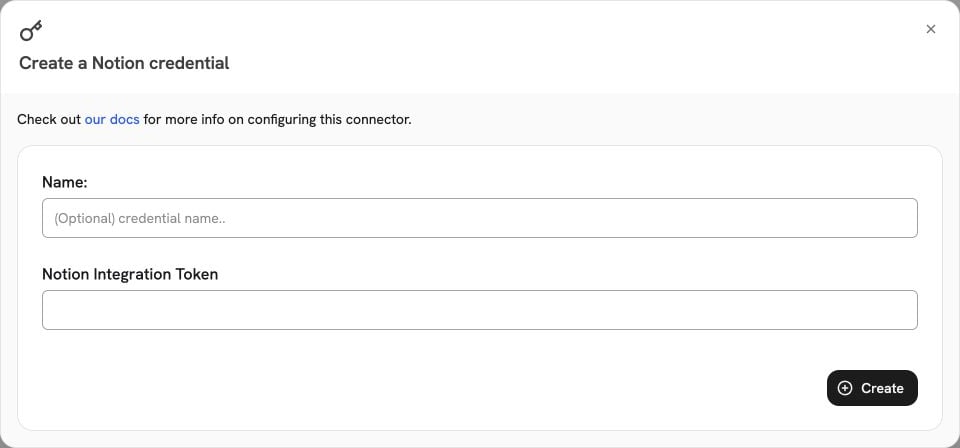
Under **Select a credential**, select **Create New**. Enter a descriptive credential name if prompted.
Paste your Notion token into **Notion Integration Token**, then select **Create**. Paste only the token,
without a `Bearer` prefix or quotation marks.
If you already saved a credential for this workspace, select it instead.
Keep the token private. Do not include it in screenshots, source code, or support messages.
### Reuse an existing connection
In Notion, open your workspace menu and select **Settings → Connections → Manage → All connections**.
Find the internal connection. Open its **•••** menu and select **Manage connection**. Under **Copy access token**,
select **Copy**. You can also open **Developer portal** to view its configuration.
Do not select **Refresh** to copy an existing token. Refresh generates a new token and can disrupt existing connectors.
See Notion's [internal connection authorization
guide](https://developers.notion.com/guides/get-started/authorization#internal-connection-auth-flow-set-up)
for the token location and its [connection capability reference](https://developers.notion.com/reference/capabilities)
for permission details.
### Give the connection access to pages
Creating a connection does not give it access to all workspace content. Share the pages and databases you want to index.
You can also manage shared pages in the developer portal under **Content access → Edit access**.
Open the original page or database that you want Onyx to read.
Open the **•••** menu at the top right. Under **Connections**, select **Add connections** or **+ Add connection**.
Search for the connection you created, select it, and confirm access.
Access to a parent page includes its child pages. Repeat this process for other top-level pages you want to index.
For databases, share the source database, not only a page containing a linked view.
Sharing a database also gives the connection access to its row pages and their children.
Onyx indexes accessible content within the configured root-page scope, if one is set.
See Notion's [page connection instructions](https://www.notion.com/help/add-and-manage-connections-with-the-api).
## Add the credentials in Onyx
Open **Admin Panel → Add Connector** and select **Notion**.
Under **Select a credential**, select **Create New**. Enter a descriptive credential name if prompted.
Paste your Notion token into **Notion Integration Token**, then select **Create**. Paste only the token,
without a `Bearer` prefix or quotation marks.
If you already saved a credential for this workspace, select it instead.
 Select **Continue** to open the configuration step. Give the connector a name, such as `Notion Knowledge Base`.
Set **Root Page ID** only if you want to limit indexing to one page and its children.
| Root Page ID | Content indexed |
| - | - |
| Empty | All pages available to the Notion connection. |
| A page ID | That page and its accessible child pages. |
To find a page ID, copy its Notion link. Use the 32-character ID at the end of the URL path,
before any `?` query string. For example,
`https://www.notion.so/Team-Wiki-0123456789abcdef0123456789abcdef` has the page ID
`0123456789abcdef0123456789abcdef`. Enter the ID, not the full URL.
The root page must still be shared with the connection in Notion.
Review who can access the indexed content in Onyx. **Public** content is available to all Onyx users.
Use the available restricted-access options for content with a smaller audience.
Do not assume that sharing a page with the Notion connection preserves each user's Notion permissions in Onyx.
Select **Advanced** to review the refresh interval and pruning settings.
Select **Create Connector** to save the connector and start indexing.
## Verify indexing and use your content
Open **Admin Panel → Existing Connectors** and select your Notion connector. Wait for an indexing run to finish.
Check the document count and any reported errors.
Select **Continue** to open the configuration step. Give the connector a name, such as `Notion Knowledge Base`.
Set **Root Page ID** only if you want to limit indexing to one page and its children.
| Root Page ID | Content indexed |
| - | - |
| Empty | All pages available to the Notion connection. |
| A page ID | That page and its accessible child pages. |
To find a page ID, copy its Notion link. Use the 32-character ID at the end of the URL path,
before any `?` query string. For example,
`https://www.notion.so/Team-Wiki-0123456789abcdef0123456789abcdef` has the page ID
`0123456789abcdef0123456789abcdef`. Enter the ID, not the full URL.
The root page must still be shared with the connection in Notion.
Review who can access the indexed content in Onyx. **Public** content is available to all Onyx users.
Use the available restricted-access options for content with a smaller audience.
Do not assume that sharing a page with the Notion connection preserves each user's Notion permissions in Onyx.
Select **Advanced** to review the refresh interval and pruning settings.
Select **Create Connector** to save the connector and start indexing.
## Verify indexing and use your content
Open **Admin Panel → Existing Connectors** and select your Notion connector. Wait for an indexing run to finish.
Check the document count and any reported errors.
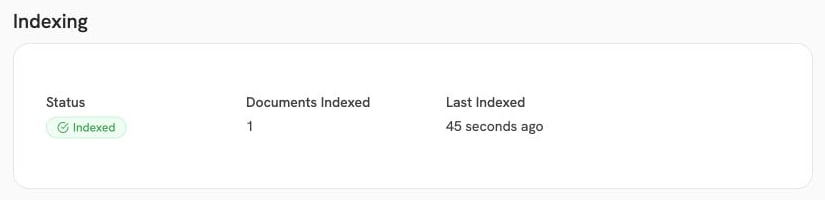 If **Some documents failed to index** appears, open **View details** even when the status says **Indexed**.
After fixing the error, select **Manage → Re-Index** and choose the required update or complete re-index.
Return to Onyx and search for a distinctive phrase from a shared Notion page.
Use an agent with access to the connector's documents. Check the source citation and open the linked Notion page.
To give an agent a specific collection, create a document set under **Admin Panel → Document Sets**.
Include the Notion connector and select that document set in the agent's knowledge settings.
## Troubleshooting
| Problem | What to check |
| - | - |
| Invalid or expired token (401) | Copy the token again from the correct Notion connection and update the saved Onyx credential. |
| Insufficient permissions (403) | Check **Read content** and the connection's access to the target content. |
| Resource not found (404) | Check the root page ID, workspace, and page sharing. Notion can return 404 for unshared content. |
| No documents or missing pages | Share the original pages and databases with the connection. Check whether **Root Page ID** excludes them. |
| Rate limit (429) | Allow time for Notion's rate limit to clear, then retry the indexing run. |
| Content is indexed but absent from answers | Check the user's Onyx access and the agent's selected document sets. |
To stop fetching a page, remove the connection's access in Notion or narrow the root-page scope.
Previously indexed documents are not removed immediately when you change Notion access.
Enable pruning and check that a pruning run succeeds to remove documents that are no longer accessible.
This documentation is built and hosted on [Mintlify](https://mintlify.com), a developer documentation platform.
If **Some documents failed to index** appears, open **View details** even when the status says **Indexed**.
After fixing the error, select **Manage → Re-Index** and choose the required update or complete re-index.
Return to Onyx and search for a distinctive phrase from a shared Notion page.
Use an agent with access to the connector's documents. Check the source citation and open the linked Notion page.
To give an agent a specific collection, create a document set under **Admin Panel → Document Sets**.
Include the Notion connector and select that document set in the agent's knowledge settings.
## Troubleshooting
| Problem | What to check |
| - | - |
| Invalid or expired token (401) | Copy the token again from the correct Notion connection and update the saved Onyx credential. |
| Insufficient permissions (403) | Check **Read content** and the connection's access to the target content. |
| Resource not found (404) | Check the root page ID, workspace, and page sharing. Notion can return 404 for unshared content. |
| No documents or missing pages | Share the original pages and databases with the connection. Check whether **Root Page ID** excludes them. |
| Rate limit (429) | Allow time for Notion's rate limit to clear, then retry the indexing run. |
| Content is indexed but absent from answers | Check the user's Onyx access and the agent's selected document sets. |
To stop fetching a page, remove the connection's access in Notion or narrow the root-page scope.
Previously indexed documents are not removed immediately when you change Notion access.
Enable pruning and check that a pruning run succeeds to remove documents that are no longer accessible.
This documentation is built and hosted on [Mintlify](https://mintlify.com), a developer documentation platform.